ComfyUI 8GB VRAM Settings
Best ComfyUI settings for 8GB GPU users, including SDXL on 8GB VRAM, batch size 1, reduced resolution, separated upscale, ControlNet limits, and low VRAM mode.
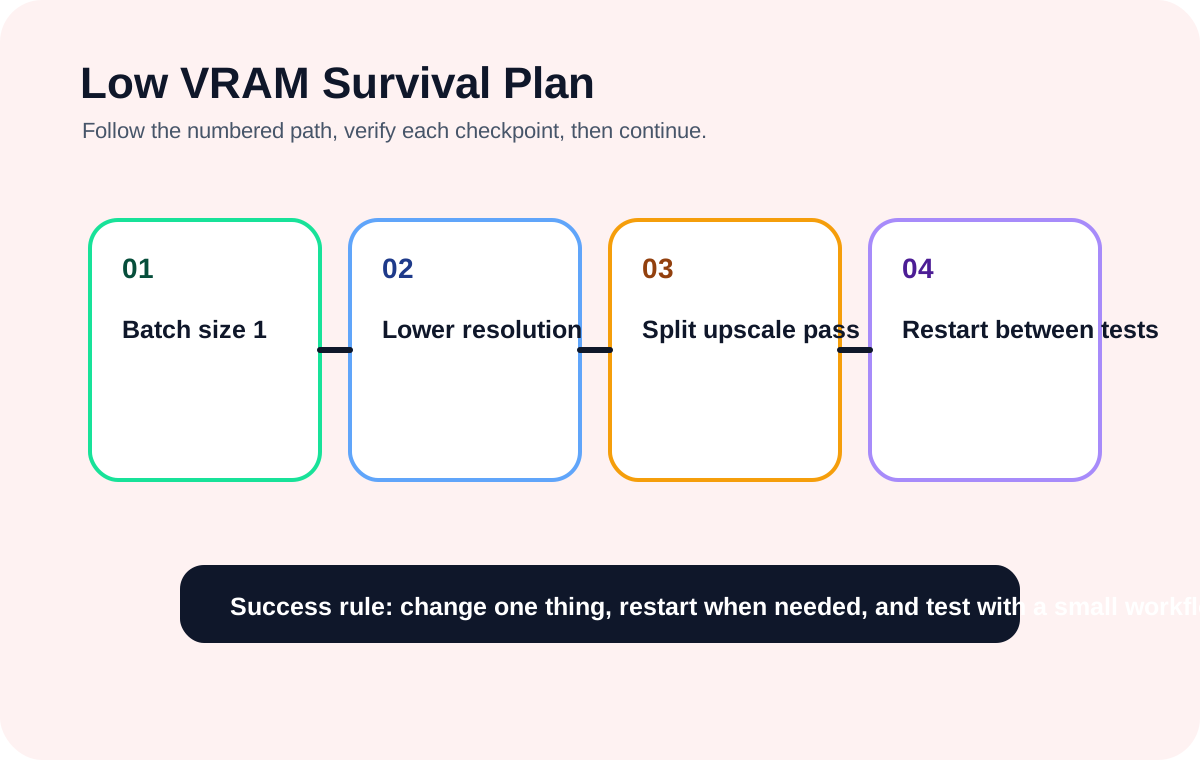
Quick answer
An 8GB GPU can run ComfyUI reliably when it starts from a pre-run baseline: batch size 1, one checkpoint, moderate resolution, no upscale, and no stacked ControlNet or IPAdapter branches.
Recommended workflow
- 01
Best ComfyUI settings for 8GB GPU users: An 8GB GPU can run ComfyUI reliably when it starts from a pre-run baseline: batch size 1, one checkpoint, moderate resolution, no upscale, and no stacked ControlNet or IPAdapter branches.
- 02
Choose the pre-run branch before tuning quality: For SD1.5, start at 512x512 or 512x768. For SDXL, start at 768x768 with batch size 1 and no high-res fix. For ControlNet or IPAdapter, keep one control branch only. For upscale, finish the base image first and run enlargement as a separate workflow.
- 03
ComfyUI SDXL 8GB VRAM baseline: SDXL can work on 8GB VRAM, but not every SDXL workflow is an 8GB workflow. A simple text-to-image graph is very different from SDXL plus high-res fix, multiple ControlNets, IPAdapter, and 2x upscale.
- 04
When to use low VRAM mode: Low VRAM mode is a fallback, not the first fix. Lower resolution, reduce batch size, disable upscale, and remove heavy control branches before relying on startup flags.
- 05
Route traffic between the VRAM guides: Use this guide to choose safe settings before you run. Use the CUDA out of memory guide when the run already failed, the SD1.5 vs SDXL guide when the model family may be too heavy, the ControlNet low VRAM guide when adapter branches cause pressure, and the low VRAM optimization hub for the full 4GB/6GB/8GB reduction sequence.
Full tutorial notes
Best ComfyUI settings for 8GB GPU users
An 8GB GPU can run ComfyUI reliably when it starts from a pre-run baseline: batch size 1, one checkpoint, moderate resolution, no upscale, and no stacked ControlNet or IPAdapter branches.
Use this page before pressing Queue Prompt. If the run has already failed with CUDA out of memory, switch to the CUDA OOM guide and troubleshoot by failure stage instead of changing random settings.
- Batch size 1 is the default baseline.
- Use SD1.5 at 512x512 or 512x768 for the safest first run.
- Use SDXL on 8GB VRAM carefully, starting around 768x768.
- Move upscale into a second pass instead of combining it with the first generation.
Choose the pre-run branch before tuning quality
For SD1.5, start at 512x512 or 512x768. For SDXL, start at 768x768 with batch size 1 and no high-res fix. For ControlNet or IPAdapter, keep one control branch only. For upscale, finish the base image first and run enlargement as a separate workflow.
This branching keeps the 8GB settings guide distinct from the low VRAM optimization hub: this page chooses the initial safe route, while the hub covers the broader 4GB, 6GB, and 8GB reduction order.
- SD1.5 branch: safest beginner baseline.
- SDXL branch: possible on 8GB, but start small.
- ControlNet branch: one control model while testing.
- Upscale branch: separate pass after the base image succeeds.
ComfyUI SDXL 8GB VRAM baseline
SDXL can work on 8GB VRAM, but not every SDXL workflow is an 8GB workflow. A simple text-to-image graph is very different from SDXL plus high-res fix, multiple ControlNets, IPAdapter, and 2x upscale.
Use 768x768, batch size 1, one SDXL checkpoint, and no extra branches for the first test. If that succeeds, add LoRA, ControlNet, and upscale one at a time; if it fails repeatedly, use the SD1.5 vs SDXL guide to decide whether to fall back.
- Do not start with Flux or video workflows on an 8GB learning setup.
- Use only one ControlNet branch while testing.
- If SDXL still OOMs, fall back to SD1.5 to confirm the installation is healthy.
- A workflow opening successfully does not mean it can finish within 8GB VRAM.
When to use low VRAM mode
Low VRAM mode is a fallback, not the first fix. Lower resolution, reduce batch size, disable upscale, and remove heavy control branches before relying on startup flags.
If the default mode still fails on a small baseline workflow, then test normalvram or lowvram one change at a time. Restart ComfyUI after changing startup options so you know which change helped.
- Default mode first.
- Then normalvram if needed.
- Then lowvram only when the workload is already reduced.
- Do not combine many unknown startup flags at once.
Route traffic between the VRAM guides
Use this guide to choose safe settings before you run. Use the CUDA out of memory guide when the run already failed, the SD1.5 vs SDXL guide when the model family may be too heavy, the ControlNet low VRAM guide when adapter branches cause pressure, and the low VRAM optimization hub for the full 4GB/6GB/8GB reduction sequence.
- Pre-run settings: stay on this page.
- Actual CUDA OOM error: use /en/guides/cuda-out-of-memory/.
- Model family decision: use /en/guides/sd15-vs-sdxl/.
- ControlNet memory pressure: use /en/guides/controlnet-models/.
Check before you run
- Set batch size to 1 before pressing Queue Prompt.
- Choose the starting branch: SD1.5, SDXL, ControlNet, or upscale.
- Close other GPU-heavy apps and confirm available VRAM before testing.
Common mistakes
- Starting with SDXL plus high-res fix, multiple ControlNets, and upscale in one run.
- Using lowvram as the first fix before reducing resolution and branches.
- Staying on the settings page after an actual CUDA out of memory error instead of moving to the OOM guide.
Success standard
- The baseline workflow completes three times without CUDA out of memory.
- VRAM does not remain pinned at the card limit after each run.
- LoRA, ControlNet, and upscale are added one at a time after the baseline succeeds.
What to do next
- Use the CUDA out of memory guide if the run has already failed.
- Use the SD1.5 vs SDXL guide if the model family is the main decision.
- Use the ControlNet low VRAM guide before stacking control branches.
Finished this guide? Return to the main path
If this guide solved a specific issue, return to the beginner setup, model path, CUDA VRAM, or workflow import route to keep going.
Need more context?
This English guide gives the direct working path first. The paired Chinese reference can provide extra screenshots, local download notes, and longer troubleshooting branches for the same topic.