ComfyUI Windows Install Guide
A beginner-friendly ComfyUI Windows installation guide covering the portable package, first launch, model folders, WebUI access, and common startup errors.
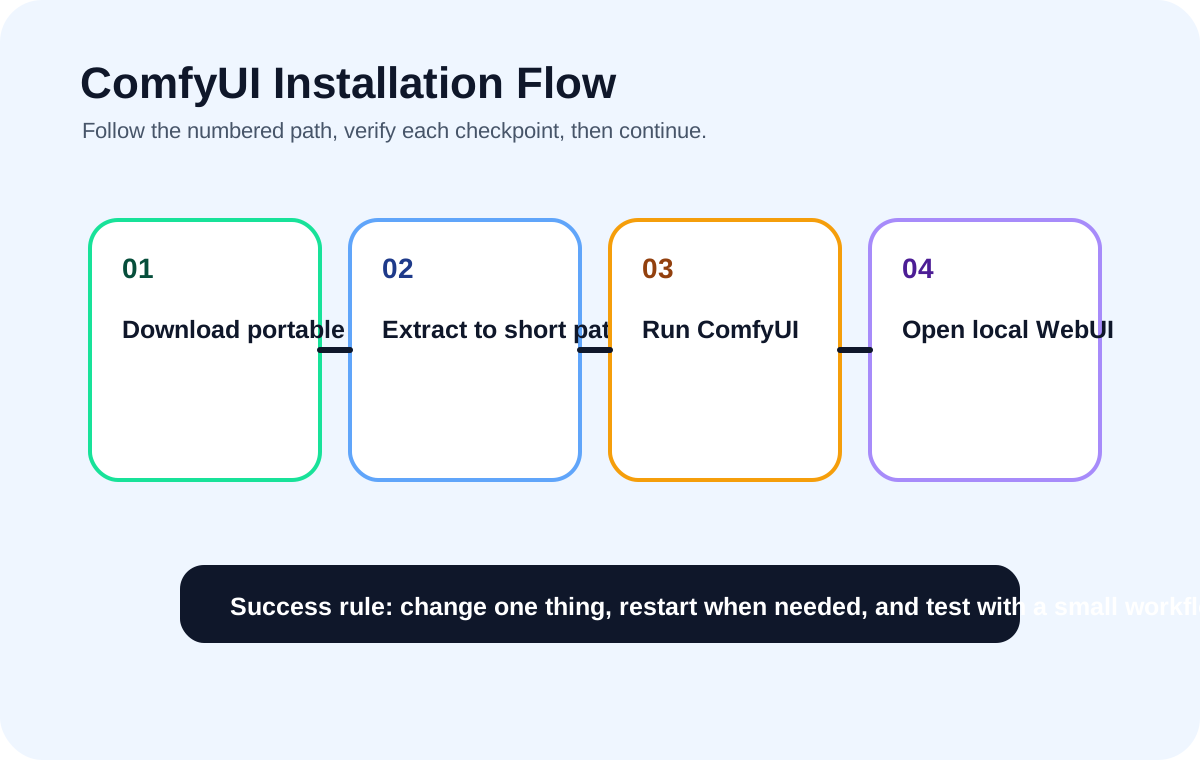
Quick answer
For most Windows users, the portable ComfyUI package is the safest first install because it keeps Python, launch scripts, and core files together. It also makes troubleshooting easier: if the package launches, you can focus on models and workflows instead of wondering which Python environment is active.
Recommended workflow
- 01
Choose the portable Windows package first: For most Windows users, the portable ComfyUI package is the safest first install because it keeps Python, launch scripts, and core files together. It also makes troubleshooting easier: if the package launches, you can focus on models and workflows instead of wondering which Python environment is active.
- 02
Verify startup before adding anything else: A clean first launch is the foundation of the whole setup. Do not install Manager, LoRA packs, ControlNet, or shared workflows before the base interface loads and stays connected.
- 03
Add only one checkpoint for the first test: The first image test does not need a large model collection. Place one compatible checkpoint in models/checkpoints, restart ComfyUI, and confirm it appears in the checkpoint dropdown.
Full tutorial notes
Choose the portable Windows package first
For most Windows users, the portable ComfyUI package is the safest first install because it keeps Python, launch scripts, and core files together. It also makes troubleshooting easier: if the package launches, you can focus on models and workflows instead of wondering which Python environment is active.
Extract the package into a short path such as C:\AI\ComfyUI or D:\ComfyUI. Avoid desktop sync folders, OneDrive, non-ASCII folder names, and deeply nested paths while you are trying to get the first launch working.
- Use the NVIDIA launch script if you have an NVIDIA GPU.
- Keep the terminal window open after launch.
- Open the local browser address only after the server says it is ready.
Verify startup before adding anything else
A clean first launch is the foundation of the whole setup. Do not install Manager, LoRA packs, ControlNet, or shared workflows before the base interface loads and stays connected.
If the browser cannot open ComfyUI, check whether the terminal is still running, whether another app is using port 8188, and whether Windows firewall blocked the local server.
- The WebUI opens in the browser.
- The terminal shows no fresh traceback.
- The page remains connected after a refresh.
Add only one checkpoint for the first test
The first image test does not need a large model collection. Place one compatible checkpoint in models/checkpoints, restart ComfyUI, and confirm it appears in the checkpoint dropdown.
Once a minimal text-to-image workflow works, you can add LoRA, VAE, ControlNet, upscale models, and custom nodes with much less confusion.
Check before you run
- Use a short ASCII-only install path.
- Confirm the NVIDIA driver before changing PyTorch.
- Start ComfyUI once before installing extra custom nodes.
Common mistakes
- Installing multiple Python versions without knowing which one ComfyUI uses.
- Extracting the portable package inside a synced or protected folder.
- Closing the terminal before reading the startup error.
Success standard
- ComfyUI restarts without a new terminal traceback.
- The workflow can be queued once without missing nodes or empty model dropdowns.
- The result can be reproduced after refreshing the browser page.
What to do next
- Increase image size only after the small test workflow is stable.
- Add one plugin or model family at a time.
- Return to the English guide library if the next error belongs to another category.
Finished this guide? Return to the main path
If this guide solved a specific issue, return to the beginner setup, model path, CUDA VRAM, or workflow import route to keep going.
Need more context?
This English guide gives the direct working path first. The paired Chinese reference can provide extra screenshots, local download notes, and longer troubleshooting branches for the same topic.