Fix Missing Nodes in ComfyUI
Resolve missing nodes after importing a ComfyUI workflow by using Manager, matching node package names, installing dependencies, and restarting safely.
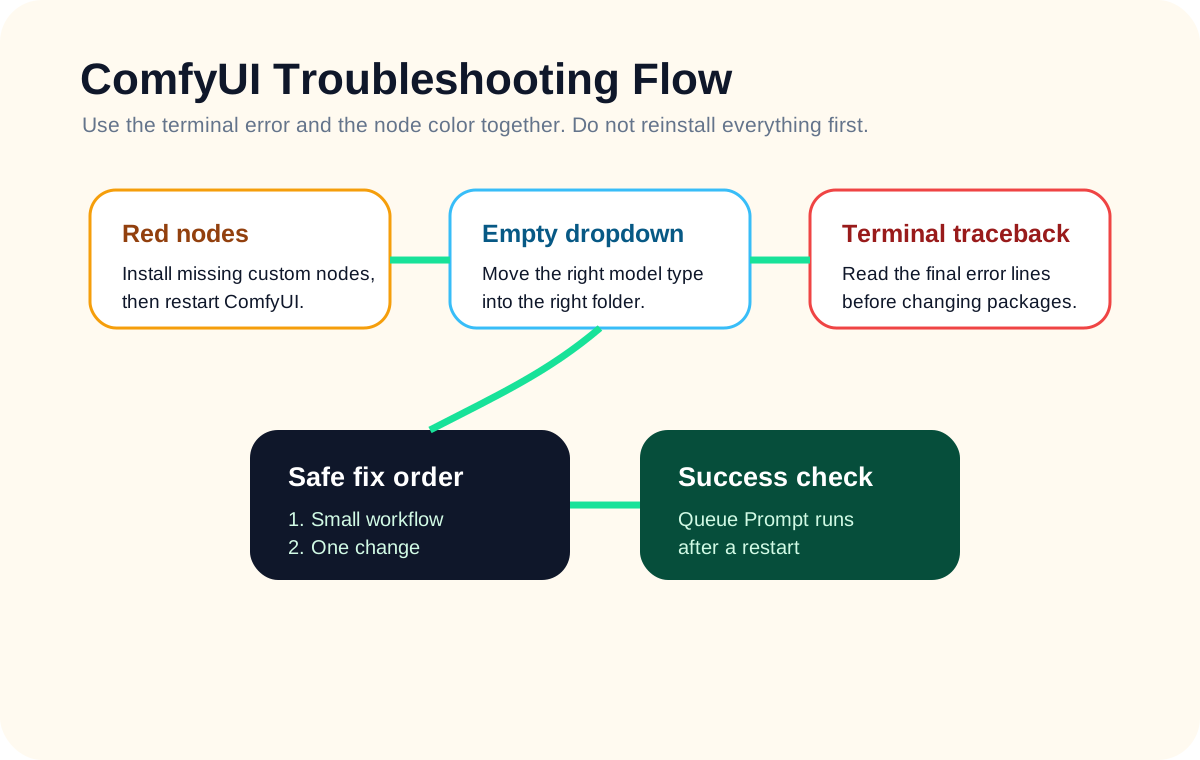
Quick answer
Red blocks in an imported workflow usually mean custom nodes are missing. Empty dropdowns usually mean model files are missing or placed in the wrong folder. Fixing these as separate problems prevents wasted reinstall attempts.
Recommended workflow
- 01
Separate missing nodes from missing models: Red blocks in an imported workflow usually mean custom nodes are missing. Empty dropdowns usually mean model files are missing or placed in the wrong folder. Fixing these as separate problems prevents wasted reinstall attempts.
- 02
Install node packs in small batches: Manager can install many missing nodes, but installing everything at once makes failures harder to diagnose. Install one obvious node pack, restart ComfyUI, reload the workflow, and check what changed.
- 03
Restart before judging the result: Many custom nodes are loaded only during startup. If Manager says installation is finished but the workflow still shows red nodes, restart ComfyUI before deciding the install failed.
Full tutorial notes
Separate missing nodes from missing models
Red blocks in an imported workflow usually mean custom nodes are missing. Empty dropdowns usually mean model files are missing or placed in the wrong folder. Fixing these as separate problems prevents wasted reinstall attempts.
Start by writing down the missing node names exactly as shown. Then search for the node pack in ComfyUI Manager or in the workflow author’s documentation.
- Red node: install the custom node package.
- Empty model dropdown: place the correct model file.
- Python traceback: inspect dependencies after installing the node pack.
Install node packs in small batches
Manager can install many missing nodes, but installing everything at once makes failures harder to diagnose. Install one obvious node pack, restart ComfyUI, reload the workflow, and check what changed.
If the node pack imports fail after installation, open the terminal log and look for missing Python packages, incompatible versions, or platform-specific build errors.
Restart before judging the result
Many custom nodes are loaded only during startup. If Manager says installation is finished but the workflow still shows red nodes, restart ComfyUI before deciding the install failed.
Check before you run
- Copy the exact final terminal error line.
- Reproduce the issue with the smallest workflow possible.
- Change one suspected cause, restart, and test again.
Common mistakes
- Reinstalling ComfyUI before isolating the error.
- Treating missing nodes and missing models as the same problem.
- Hiding the terminal and relying only on the browser warning.
Success standard
- ComfyUI restarts without a new terminal traceback.
- The workflow can be queued once without missing nodes or empty model dropdowns.
- The result can be reproduced after refreshing the browser page.
What to do next
- Increase image size only after the small test workflow is stable.
- Add one plugin or model family at a time.
- Return to the English guide library if the next error belongs to another category.
Finished this guide? Return to the main path
If this guide solved a specific issue, return to the beginner setup, model path, CUDA VRAM, or workflow import route to keep going.
Need more context?
This English guide gives the direct working path first. The paired Chinese reference can provide extra screenshots, local download notes, and longer troubleshooting branches for the same topic.