ComfyUI Model File Paths
A practical map of where to put ComfyUI checkpoints, LoRA, VAE, ControlNet, upscale models, CLIP Vision files, and other model assets.
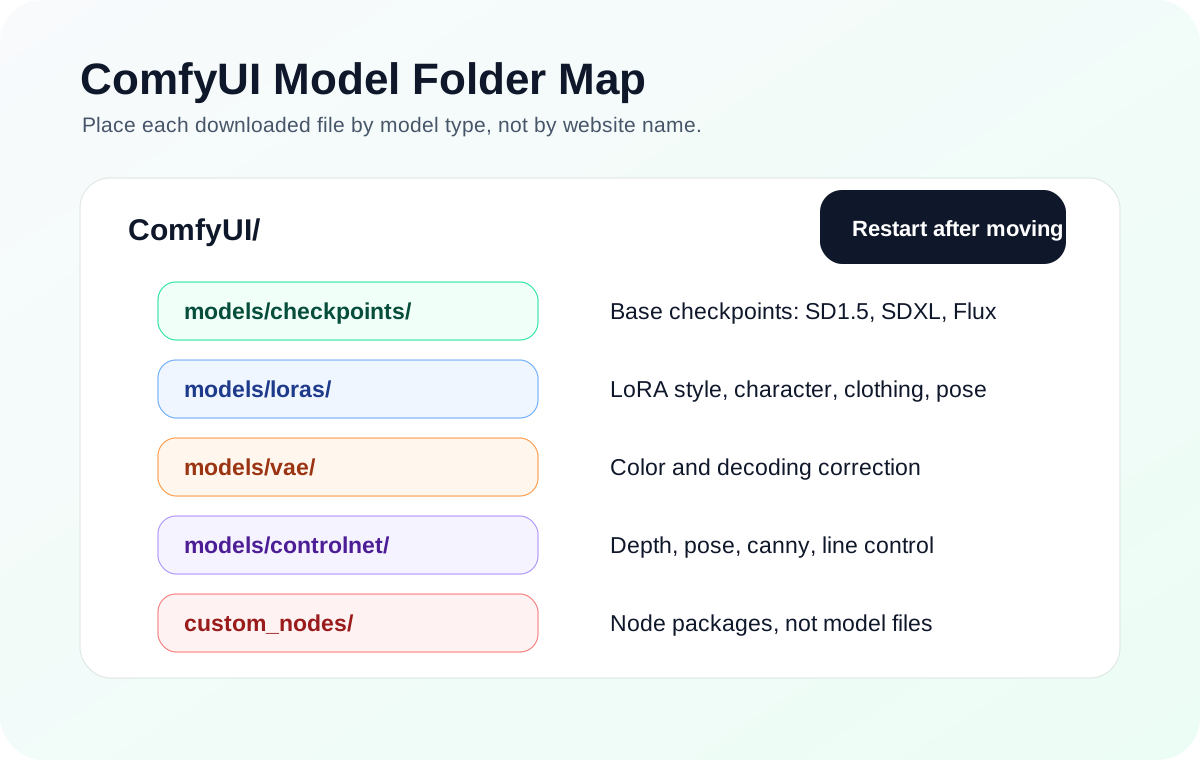
Quick answer
ComfyUI does not care whether a file came from Civitai, Hugging Face, GitHub, or a workflow author. It cares what type of model the file is. Checkpoints, LoRA files, VAE files, ControlNet models, CLIP Vision files, and upscale models belong in different folders.
Recommended workflow
- 01
Sort files by model type, not by download site: ComfyUI does not care whether a file came from Civitai, Hugging Face, GitHub, or a workflow author. It cares what type of model the file is. Checkpoints, LoRA files, VAE files, ControlNet models, CLIP Vision files, and upscale models belong in different folders.
- 02
Match the dropdown to the folder: If a checkpoint dropdown is empty, inspect models/checkpoints. If a LoRA loader is empty, inspect models/loras. If a VAE node is empty, inspect models/vae. This one-to-one check is faster than reinstalling ComfyUI.
- 03
Do not rename files blindly: Shared workflows often reference the author’s local model file names. You usually do not need the exact same filename if you understand the model family. Choose a compatible local checkpoint or LoRA from the dropdown instead of renaming unrelated files to silence an error.
- 04
Use this folder map for the first repair pass: When a workflow says a model is missing, read the loader node name and map it to the folder before downloading anything else. Checkpoint Loader normally reads models/checkpoints, LoRA Loader reads models/loras, VAE nodes read models/vae, ControlNet nodes read models/controlnet, and upscale nodes read models/upscale_models.
Full tutorial notes
Sort files by model type, not by download site
ComfyUI does not care whether a file came from Civitai, Hugging Face, GitHub, or a workflow author. It cares what type of model the file is. Checkpoints, LoRA files, VAE files, ControlNet models, CLIP Vision files, and upscale models belong in different folders.
Many beginner problems come from placing every .safetensors file into checkpoints. The extension is not enough. Read the model page and the workflow node that asks for the file.
- Checkpoints go in models/checkpoints.
- LoRA files go in models/loras.
- VAE files go in models/vae.
- ControlNet models go in models/controlnet.
Match the dropdown to the folder
If a checkpoint dropdown is empty, inspect models/checkpoints. If a LoRA loader is empty, inspect models/loras. If a VAE node is empty, inspect models/vae. This one-to-one check is faster than reinstalling ComfyUI.
After moving files, restart ComfyUI or refresh the model list if your setup supports refresh. If the file still does not appear, confirm the file is complete and not a preview image, archive, or wrong model family.
Do not rename files blindly
Shared workflows often reference the author’s local model file names. You usually do not need the exact same filename if you understand the model family. Choose a compatible local checkpoint or LoRA from the dropdown instead of renaming unrelated files to silence an error.
Blind renaming makes the next error harder to diagnose because the filename now lies about what the file actually is. Keep original names when possible and document the model family instead.
Use this folder map for the first repair pass
When a workflow says a model is missing, read the loader node name and map it to the folder before downloading anything else. Checkpoint Loader normally reads models/checkpoints, LoRA Loader reads models/loras, VAE nodes read models/vae, ControlNet nodes read models/controlnet, and upscale nodes read models/upscale_models.
If the file is present but the dropdown is still empty, the file may be the wrong type, incomplete, still inside an archive, or hidden one folder too deep after extraction.
- Checkpoint Loader -> models/checkpoints
- LoRA Loader -> models/loras
- VAE Loader -> models/vae
- ControlNet Loader -> models/controlnet
- Upscale model node -> models/upscale_models
Check before you run
- Identify the model type before moving the file.
- Put the file in the folder used by the node dropdown that needs it.
- Restart ComfyUI or refresh the model list before judging whether the file is missing.
Common mistakes
- Dropping every .safetensors file into models/checkpoints.
- Renaming an unrelated model to match a workflow author’s filename.
- Confusing missing custom nodes with missing model files.
Success standard
- Checkpoint Loader shows the checkpoint you added.
- LoRA, VAE, ControlNet, and upscale loaders only show files from their matching folders.
- An imported workflow can be repaired by selecting local compatible models from dropdowns.
What to do next
- Keep one small known-good checkpoint for troubleshooting.
- Create a download note that records model family, source page, and intended folder.
- Fix empty dropdowns before installing more plugins.
Finished this guide? Return to the main path
If this guide solved a specific issue, return to the beginner setup, model path, CUDA VRAM, or workflow import route to keep going.
Need more context?
This English guide gives the direct working path first. The paired Chinese reference can provide extra screenshots, local download notes, and longer troubleshooting branches for the same topic.