ComfyUI CUDA Out of Memory Fix Hub
Diagnose ComfyUI CUDA out of memory by failure stage: 8GB VRAM settings, SDXL vs SD1.5 model choice, ControlNet memory pressure, upscale failures, low VRAM mode, and background VRAM usage.
Quick answer
CUDA out of memory usually means the workflow asks the GPU to hold too much at once. It does not automatically mean ComfyUI, CUDA, Python, or the model file is broken.
Recommended workflow
- 01
ComfyUI CUDA out of memory: use this as the VRAM error hub: CUDA out of memory usually means the workflow asks the GPU to hold too much at once. It does not automatically mean ComfyUI, CUDA, Python, or the model file is broken.
- 02
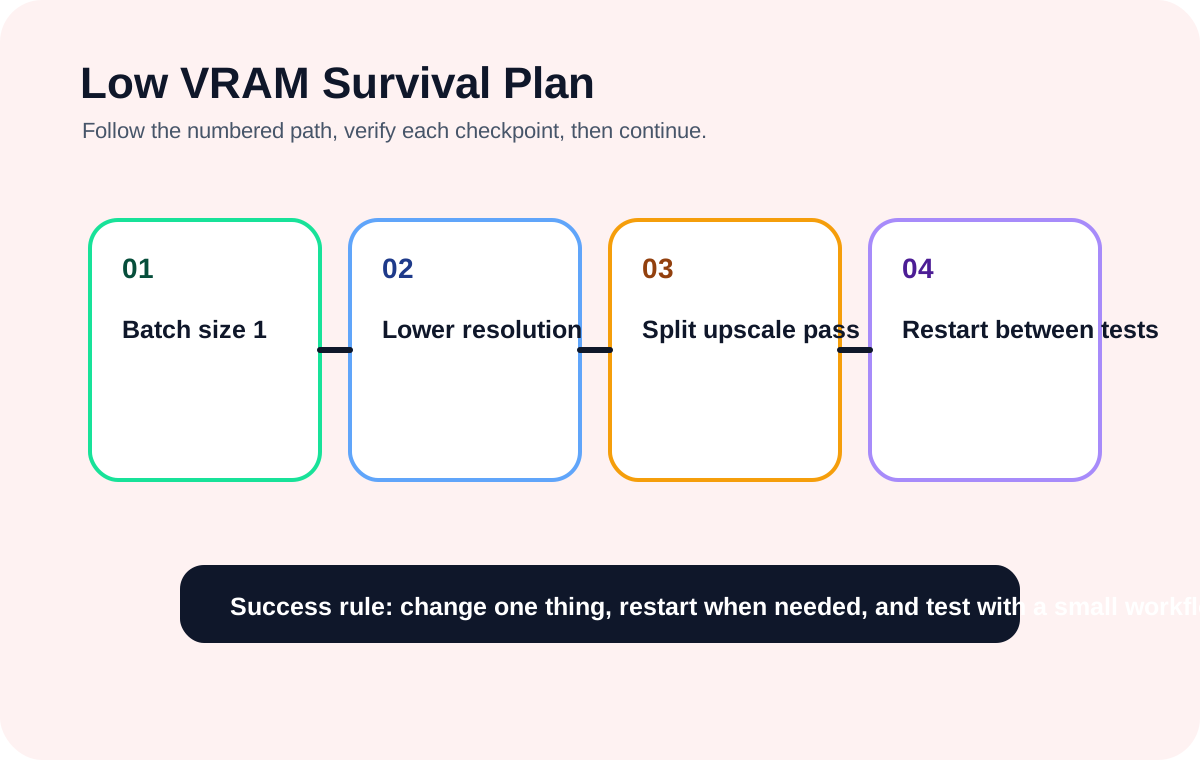
30-second low VRAM checklist: Start with the safest reductions: batch size 1, smaller latent size, SD1.5 instead of SDXL when possible, no upscale, no video nodes, and no stacked ControlNet branches. Once the workflow finishes, add one feature back at a time.
- 03
Route the failure before changing random settings: If OOM appears during model loading, test a lighter checkpoint or close other VRAM-heavy apps. If it appears during KSampler, reduce latent size, batch, and conditioning branches. If it appears inside ControlNet or IPAdapter, keep only one branch and reduce the control image size. If it appears during upscale, split upscale into a second workflow or lower the tile size and multiplier.
- 04
8GB VRAM ComfyUI settings: On an 8GB GPU, avoid starting with high-resolution SDXL plus multiple ControlNet branches, IPAdapter, upscale, and video nodes. A workflow can open successfully and still be too heavy to run.
- 05
low VRAM mode is a fallback, not the first fix: ComfyUI startup options such as --normalvram and --lowvram can help with model loading and memory scheduling, but they should come after reducing resolution, batch size, upscale, and extra branches.
- 06
Add quality back one factor at a time: After the reduced workflow succeeds, add back only one pressure source at a time: resolution, one LoRA, one ControlNet branch, then upscale. If the next run fails, you know exactly which change crossed the VRAM limit.
Full tutorial notes
ComfyUI CUDA out of memory: use this as the VRAM error hub
CUDA out of memory usually means the workflow asks the GPU to hold too much at once. It does not automatically mean ComfyUI, CUDA, Python, or the model file is broken.
Use this page as the final landing point for VRAM failures. The 8GB VRAM settings guide helps before you run, the SD1.5 vs SDXL guide helps choose a lighter model family, and the ControlNet low VRAM guide helps reduce adapter branches. When the final symptom is CUDA out of memory, return here and reduce the workload in a controlled order.
- Set batch size to 1 first.
- Reduce resolution before changing drivers.
- Disable upscale until the base image succeeds.
- Run only one ControlNet or IPAdapter while testing.
- Restart ComfyUI after heavy failed attempts.
30-second low VRAM checklist
Start with the safest reductions: batch size 1, smaller latent size, SD1.5 instead of SDXL when possible, no upscale, no video nodes, and no stacked ControlNet branches. Once the workflow finishes, add one feature back at a time.
This checklist is temporary triage, not a permanent quality target. The goal is to prove whether the workflow can complete on your GPU before you tune image quality.
- SD1.5 baseline: 512x512 or 512x768.
- SDXL baseline on 8GB: try 768x768, batch 1.
- Move upscale into a separate second pass.
- Close games, editors, and other AI apps that reserve VRAM.
Route the failure before changing random settings
If OOM appears during model loading, test a lighter checkpoint or close other VRAM-heavy apps. If it appears during KSampler, reduce latent size, batch, and conditioning branches. If it appears inside ControlNet or IPAdapter, keep only one branch and reduce the control image size. If it appears during upscale, split upscale into a second workflow or lower the tile size and multiplier.
This routing step prevents circular debugging. Prompt changes do not fix a too-heavy ControlNet graph, and reinstalling CUDA does not fix a 2x upscale stage that exceeds the available VRAM.
- Loading OOM: model family or reserved VRAM.
- Sampling OOM: resolution, batch, steps, or conditions.
- ControlNet OOM: too many branches or too-large control images.
- Upscale OOM: multiplier, tile size, or combined workflow pressure.
8GB VRAM ComfyUI settings
On an 8GB GPU, avoid starting with high-resolution SDXL plus multiple ControlNet branches, IPAdapter, upscale, and video nodes. A workflow can open successfully and still be too heavy to run.
Use one known-good checkpoint, one prompt, batch size 1, and a conservative resolution. Then test LoRA, ControlNet, and upscale separately instead of enabling every branch at once.
- Prefer SD1.5 for broad beginner compatibility.
- Use SDXL carefully and keep the first test small.
- Treat Flux and video workflows as advanced low-VRAM cases.
- Do not judge VRAM stability from a single successful run after restart.
low VRAM mode is a fallback, not the first fix
ComfyUI startup options such as --normalvram and --lowvram can help with model loading and memory scheduling, but they should come after reducing resolution, batch size, upscale, and extra branches.
Change one startup option at a time, restart ComfyUI, and test the same small workflow. If you change several options at once, you will not know which one helped.
Add quality back one factor at a time
After the reduced workflow succeeds, add back only one pressure source at a time: resolution, one LoRA, one ControlNet branch, then upscale. If the next run fails, you know exactly which change crossed the VRAM limit.
A single successful run after restart is not proof that the full workflow is safe. Repeat the same settings and watch whether stale VRAM or background processes make later runs fail.
Check before you run
- Identify whether the OOM happened during loading, sampling, ControlNet/IPAdapter, VAE decode, or upscale.
- Reduce batch, resolution, upscale, and extra branches before changing CUDA or reinstalling ComfyUI.
- Route 8GB settings, SDXL vs SD1.5, and ControlNet low VRAM cases back through this hub when the final symptom is OOM.
Common mistakes
- Treating CUDA out of memory as proof that the model file is corrupt.
- Changing startup flags before reducing the actual workflow size.
- Adding resolution, LoRA, ControlNet, and upscale back all at once after one successful run.
Success standard
- The reduced workflow finishes at least once without a new VRAM traceback.
- You know which node or stage crossed the VRAM limit.
- Quality settings are added back one factor at a time.
What to do next
- Open the 8GB VRAM settings guide for a safe pre-run baseline.
- Open SD1.5 vs SDXL if the chosen model family is too heavy.
- Open the ControlNet low VRAM guide if adapter branches trigger OOM.
Finished this guide? Return to the main path
If this guide solved a specific issue, return to the beginner setup, model path, CUDA VRAM, or workflow import route to keep going.
Need more context?
This English guide gives the direct working path first. The paired Chinese reference can provide extra screenshots, local download notes, and longer troubleshooting branches for the same topic.