Import PNG and JSON Workflows in ComfyUI
Learn how to import ComfyUI PNG and JSON workflows, then fix missing nodes, missing models, VRAM limits, and file-name mismatch errors.
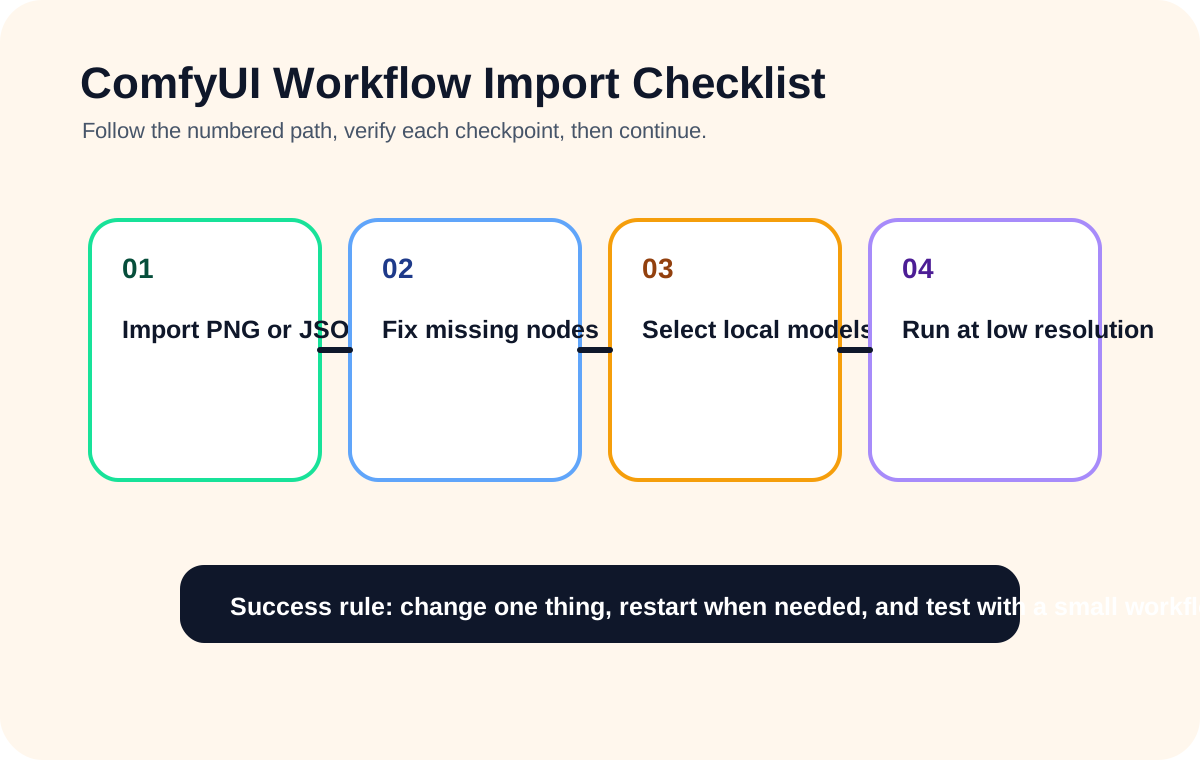
Quick answer
After dragging in a PNG or JSON workflow, do not immediately click Queue Prompt. First inspect the graph. Look for red missing-node blocks, empty model dropdowns, image input nodes that expect local files, and resolution settings that are too large for your GPU.
Recommended workflow
- 01
Import first, run later: After dragging in a PNG or JSON workflow, do not immediately click Queue Prompt. First inspect the graph. Look for red missing-node blocks, empty model dropdowns, image input nodes that expect local files, and resolution settings that are too large for your GPU.
- 02
Replace the author’s local models with yours: Shared workflows often reference filenames from the author’s computer. You usually do not need the exact file if you have a compatible checkpoint, LoRA, VAE, or ControlNet model. Open each loader node and choose a local equivalent from the dropdown.
- 03
Run the first test at low cost: Use batch size 1 and a lower resolution for the first test. Once the workflow runs, restore the intended size gradually. This makes missing-node and missing-model errors easier to see before VRAM pressure enters the picture.
Full tutorial notes
Import first, run later
After dragging in a PNG or JSON workflow, do not immediately click Queue Prompt. First inspect the graph. Look for red missing-node blocks, empty model dropdowns, image input nodes that expect local files, and resolution settings that are too large for your GPU.
This quick inspection prevents the most common beginner trap: running a workflow that cannot possibly succeed because half of its dependencies are missing.
- Check red nodes.
- Check model dropdowns.
- Check required input images.
- Lower resolution before the first run.
Replace the author’s local models with yours
Shared workflows often reference filenames from the author’s computer. You usually do not need the exact file if you have a compatible checkpoint, LoRA, VAE, or ControlNet model. Open each loader node and choose a local equivalent from the dropdown.
If you do not understand what model type is needed, read the node name and the workflow notes before downloading random files.
Run the first test at low cost
Use batch size 1 and a lower resolution for the first test. Once the workflow runs, restore the intended size gradually. This makes missing-node and missing-model errors easier to see before VRAM pressure enters the picture.
Check before you run
- Import the workflow without running it immediately.
- List missing nodes and missing models separately.
- Run the first test at low resolution and batch size 1.
Common mistakes
- Clicking Queue Prompt before checking dropdowns.
- Trusting unknown workflow files without reviewing model and node requirements.
- Trying a full-size workflow before the import is clean.
Success standard
- ComfyUI restarts without a new terminal traceback.
- The workflow can be queued once without missing nodes or empty model dropdowns.
- The result can be reproduced after refreshing the browser page.
What to do next
- Increase image size only after the small test workflow is stable.
- Add one plugin or model family at a time.
- Return to the English guide library if the next error belongs to another category.
Finished this guide? Return to the main path
If this guide solved a specific issue, return to the beginner setup, model path, CUDA VRAM, or workflow import route to keep going.
Need more context?
This English guide gives the direct working path first. The paired Chinese reference can provide extra screenshots, local download notes, and longer troubleshooting branches for the same topic.