ComfyUI Low VRAM Optimization Hub
Low VRAM ComfyUI optimization hub for 4GB, 6GB, and 8GB GPUs, linking 8GB VRAM settings, CUDA out of memory, SDXL on 8GB VRAM, ControlNet low VRAM, staged upscale, and low VRAM mode.
Quick answer
Low VRAM optimization is not one magic flag. It is a chain: choose a safe 4GB, 6GB, or 8GB baseline, then branch into 8GB VRAM settings, CUDA out of memory troubleshooting, SDXL on 8GB VRAM, ControlNet low VRAM, staged upscale, and low VRAM mode.
Low VRAM route map
Recommended workflow
- 01
ComfyUI low VRAM optimization hub: Low VRAM optimization is not one magic flag. It is a chain: choose a safe 4GB, 6GB, or 8GB baseline, then branch into 8GB VRAM settings, CUDA out of memory troubleshooting, SDXL on 8GB VRAM, ControlNet low VRAM, staged upscale, and low VRAM mode.
- 02
Choose the next page by failure scenario: This page is the map for the VRAM cluster. If you are only planning an 8GB run, use the 8GB VRAM settings guide. If the terminal already says CUDA out of memory, switch to the OOM hub. If SD1.5 works but SDXL fails, use the SD1.5 vs SDXL guide to decide whether the model family is too heavy.
- 03
4GB, 6GB, and 8GB safe baselines: A 4GB GPU should start with SD1.5, 512x512, batch size 1, and no ControlNet or upscale. A 6GB GPU can usually handle SD1.5 at 512x768 or 768x512. An 8GB GPU can test SDXL, but should begin around 768x768 with batch size 1 and no heavy branches.
- 04
ControlNet low VRAM strategy: ControlNet, IPAdapter, reference image, depth, pose, and video branches add memory pressure quickly. Disable every control branch first, prove the base workflow works, then enable one ControlNet at a time.
- 05
SDXL 8GB and staged upscale: SDXL on 8GB VRAM can work, but not every SDXL workflow is an 8GB workflow. Start with a small text-to-image graph, then add LoRA, ControlNet, and upscale one at a time.
- 06
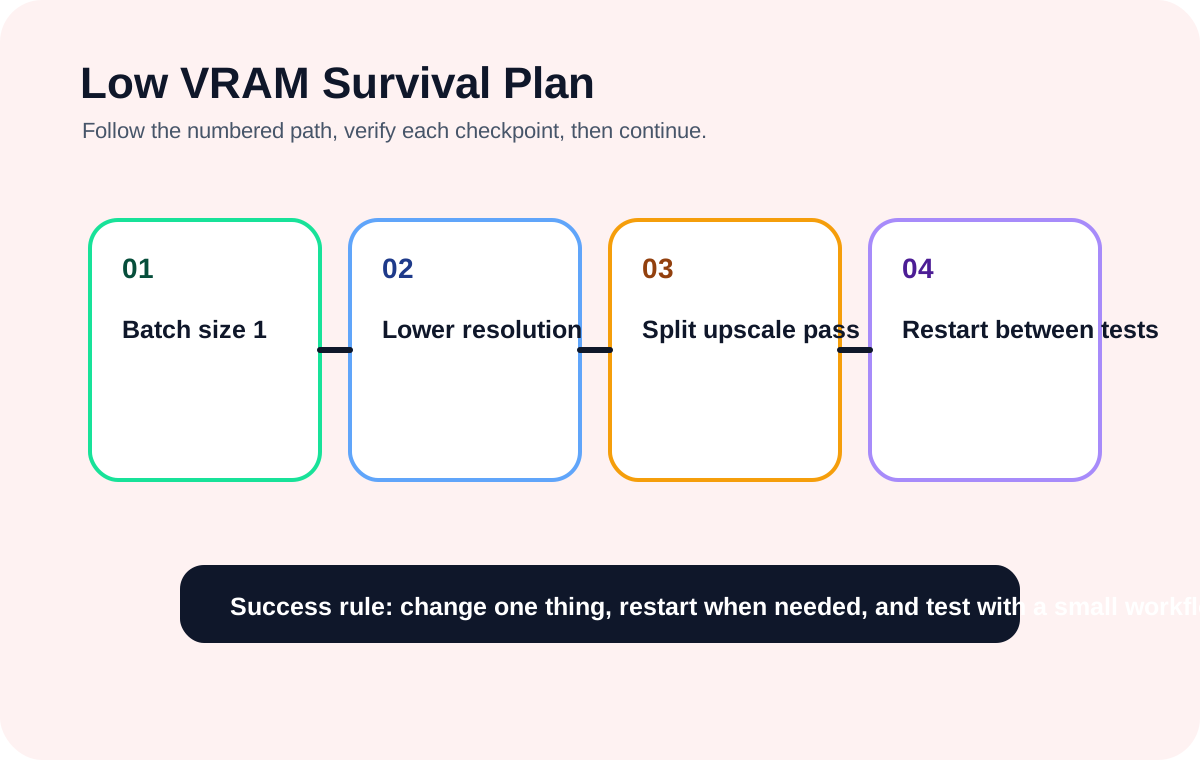
When low VRAM mode belongs in the sequence: Default startup should be tested first. Then reduce batch size, resolution, upscale, ControlNet, IPAdapter, and video nodes. If a small baseline still fails, test normalvram or lowvram one change at a time and restart ComfyUI after each change.
Full tutorial notes
ComfyUI low VRAM optimization hub
Low VRAM optimization is not one magic flag. It is a chain: choose a safe 4GB, 6GB, or 8GB baseline, then branch into 8GB VRAM settings, CUDA out of memory troubleshooting, SDXL on 8GB VRAM, ControlNet low VRAM, staged upscale, and low VRAM mode.
Use this page as the performance cluster entry point. If you are planning settings, start here or with the 8GB VRAM guide. If the run already failed with CUDA out of memory, switch to the OOM guide.
- Batch size 1 first.
- Reduce resolution before changing drivers.
- Disable upscale until the base image works.
- Use one ControlNet branch while testing.
- Try low VRAM mode only after reducing the workflow.
Choose the next page by failure scenario
This page is the map for the VRAM cluster. If you are only planning an 8GB run, use the 8GB VRAM settings guide. If the terminal already says CUDA out of memory, switch to the OOM hub. If SD1.5 works but SDXL fails, use the SD1.5 vs SDXL guide to decide whether the model family is too heavy.
For ControlNet, IPAdapter, reference image, depth, pose, and upscale failures, do not keep adding random launch flags. Remove branches until the base graph works, then use the dedicated ControlNet or staged-upscale path.
- Planning settings: use the 8GB VRAM guide.
- Runtime OOM: use the CUDA out of memory hub.
- Model-family limit: compare SD1.5, SDXL, and Flux.
- Control branch failure: test one ControlNet at a time.
- Upscale failure: split generation and upscale into separate workflows.
4GB, 6GB, and 8GB safe baselines
A 4GB GPU should start with SD1.5, 512x512, batch size 1, and no ControlNet or upscale. A 6GB GPU can usually handle SD1.5 at 512x768 or 768x512. An 8GB GPU can test SDXL, but should begin around 768x768 with batch size 1 and no heavy branches.
This baseline separates installation health from workflow weight. If a small SD1.5 workflow fails, debug the setup. If SD1.5 works but SDXL fails, reduce the SDXL workload instead of reinstalling ComfyUI.
ControlNet low VRAM strategy
ControlNet, IPAdapter, reference image, depth, pose, and video branches add memory pressure quickly. Disable every control branch first, prove the base workflow works, then enable one ControlNet at a time.
For 8GB GPUs, SDXL plus multiple ControlNet branches plus upscale is usually too much for a beginner baseline. Reduce input image size, keep batch size at 1, and split upscale into another workflow.
- Start with zero ControlNet branches.
- Add one branch only after the base image succeeds.
- Reduce control image size before changing CUDA.
- Use the CUDA OOM guide if the terminal reports out of memory.
SDXL 8GB and staged upscale
SDXL on 8GB VRAM can work, but not every SDXL workflow is an 8GB workflow. Start with a small text-to-image graph, then add LoRA, ControlNet, and upscale one at a time.
Staged upscale is the safest pattern: generate a base image, save it, reload it in a second workflow, then upscale or refine. This is slower than one large graph, but it is easier to debug and far less likely to exceed VRAM.
When low VRAM mode belongs in the sequence
Default startup should be tested first. Then reduce batch size, resolution, upscale, ControlNet, IPAdapter, and video nodes. If a small baseline still fails, test normalvram or lowvram one change at a time and restart ComfyUI after each change.
Low VRAM mode may make a workflow finish, but it does not replace a reasonable workflow design. Treat it as a fallback for tight hardware, not as permission to run every heavy node at once.
Check before you run
- Set batch size to 1.
- Lower latent resolution before changing the whole installation.
- Split upscale, ControlNet, and video passes into separate tests.
Common mistakes
- Testing high resolution and many LoRAs at the same time.
- Assuming CUDA out of memory means the model file is broken.
- Leaving old heavy runs in memory without restarting.
Success standard
- ComfyUI restarts without a new terminal traceback.
- The workflow can be queued once without missing nodes or empty model dropdowns.
- The result can be reproduced after refreshing the browser page.
What to do next
- Increase image size only after the small test workflow is stable.
- Add one plugin or model family at a time.
- Return to the English guide library if the next error belongs to another category.
Finished this guide? Return to the main path
If this guide solved a specific issue, return to the beginner setup, model path, CUDA VRAM, or workflow import route to keep going.
Need more context?
This English guide gives the direct working path first. The paired Chinese reference can provide extra screenshots, local download notes, and longer troubleshooting branches for the same topic.