What Is LoRA in ComfyUI?
Understand what LoRA does in ComfyUI, where to place LoRA files, how trigger words and weights work, and why base-model compatibility matters.
Quick answer
A LoRA is a small adapter that changes the behavior of a compatible checkpoint. It can add a character, clothing style, pose tendency, illustration style, product look, or composition habit, but it still needs a base checkpoint to generate the image.
Recommended workflow
- 01
LoRA modifies a base model; it does not replace it: A LoRA is a small adapter that changes the behavior of a compatible checkpoint. It can add a character, clothing style, pose tendency, illustration style, product look, or composition habit, but it still needs a base checkpoint to generate the image.
- 02
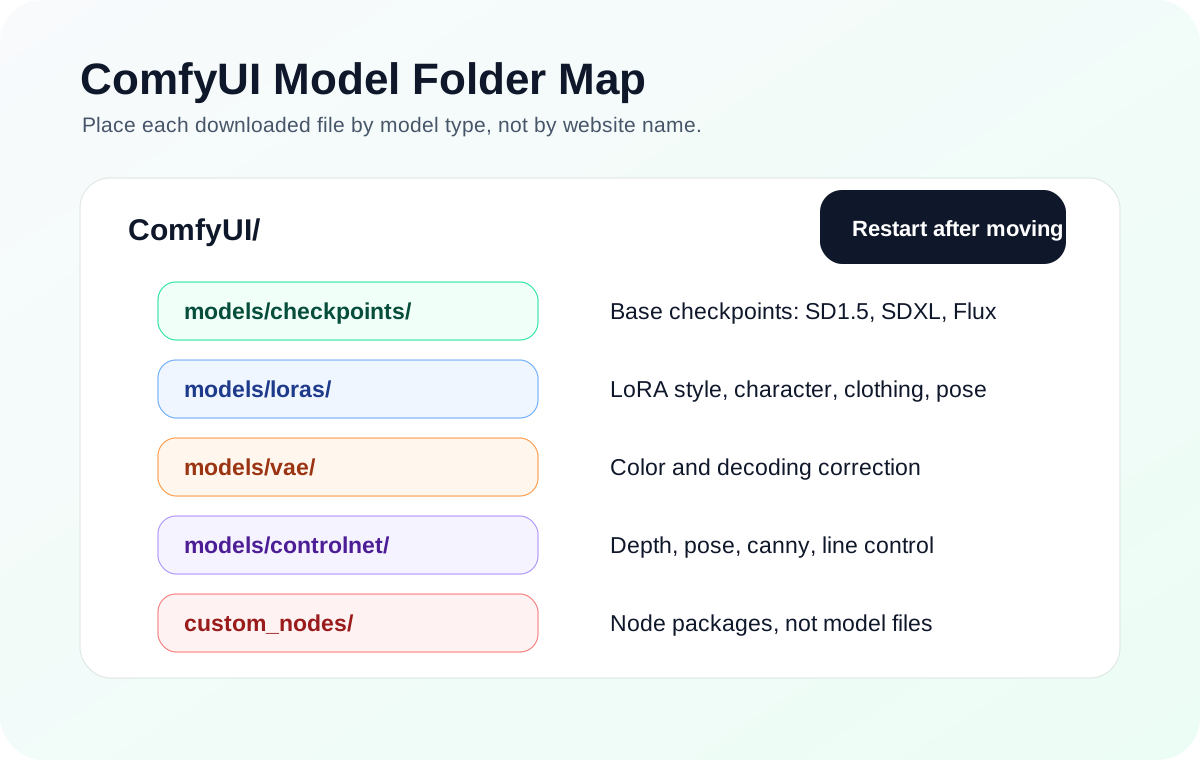
Place LoRA files and load them deliberately: Put LoRA files in models/loras and restart ComfyUI or refresh the model list. In the workflow, use a LoRA loader node and choose the file from the dropdown. If the dropdown is empty, the file is probably in the wrong folder or ComfyUI has not reloaded the model list.
- 03
Debug LoRA problems with one adapter at a time: If a prompt uses several LoRAs, remove all but one and test again. Multiple adapters can conflict with each other, especially when they were trained on different base models or expect different trigger words.
- 04
Read LoRA weight as influence, not quality: A higher LoRA weight is not automatically better. Too much strength can overpower the checkpoint, smear faces, force every image into the same style, or fight other adapters in the graph.
Full tutorial notes
LoRA modifies a base model; it does not replace it
A LoRA is a small adapter that changes the behavior of a compatible checkpoint. It can add a character, clothing style, pose tendency, illustration style, product look, or composition habit, but it still needs a base checkpoint to generate the image.
Think of the checkpoint as the base camera, painter, and material library. Think of a LoRA as a targeted instruction layer added on top. If the checkpoint is the wrong family, the LoRA may do nothing, distort the image, or throw a shape mismatch error.
This is why base-model compatibility matters. A LoRA trained for SD1.5 may not work correctly with SDXL or Flux. If the image looks broken, weak, or unrelated, check the LoRA page for the intended base model before changing prompts.
- Checkpoint = main model and model family.
- LoRA = adapter applied on top of MODEL and CLIP.
- Trigger words often activate the intended concept.
- Weight controls influence; it is not a quality slider.
Place LoRA files and load them deliberately
Put LoRA files in models/loras and restart ComfyUI or refresh the model list. In the workflow, use a LoRA loader node and choose the file from the dropdown. If the dropdown is empty, the file is probably in the wrong folder or ComfyUI has not reloaded the model list.
Start with a moderate strength such as 0.6 to 0.9. Very high strength can overpower the checkpoint, distort anatomy, or cause the style to dominate every prompt.
Debug LoRA problems with one adapter at a time
If a prompt uses several LoRAs, remove all but one and test again. Multiple adapters can conflict with each other, especially when they were trained on different base models or expect different trigger words.
Make a baseline image without the LoRA, then enable one LoRA around 0.7 strength and compare the result. This shows whether the LoRA changed identity, clothing, style, pose, or nothing at all.
- Test one LoRA first.
- Use the recommended trigger word.
- Match SD1.5, SDXL, or Flux family.
- Change one strength value at a time.
Read LoRA weight as influence, not quality
A higher LoRA weight is not automatically better. Too much strength can overpower the checkpoint, smear faces, force every image into the same style, or fight other adapters in the graph.
For a new LoRA, start near 0.6 to 0.9. If the concept is too weak, raise it slowly. If anatomy, texture, or face consistency breaks, lower it before changing the checkpoint.
Check before you run
- Verify the intended base model family before loading the LoRA.
- Put the file in models/loras and select it through a LoRA loader node.
- Start near 0.7 strength and compare against a no-LoRA baseline.
Common mistakes
- Loading a LoRA as if it were a checkpoint.
- Using weight as a quality slider and pushing it too high.
- Testing several LoRAs at once before proving any single one works.
Success standard
- The LoRA dropdown shows the file.
- A single LoRA changes the intended concept without breaking the image.
- The same workflow still runs when the LoRA is disabled.
What to do next
- Record the trigger words and recommended strength.
- Add only one new LoRA per test run.
- If output breaks, check base family before changing the prompt.
Finished this guide? Return to the main path
If this guide solved a specific issue, return to the beginner setup, model path, CUDA VRAM, or workflow import route to keep going.
Need more context?
This English guide gives the direct working path first. The paired Chinese reference can provide extra screenshots, local download notes, and longer troubleshooting branches for the same topic.