What Is VAE in ComfyUI?
Understand what VAE does in ComfyUI, why it affects color and detail, where VAE files belong, and how to fix gray or washed-out images.
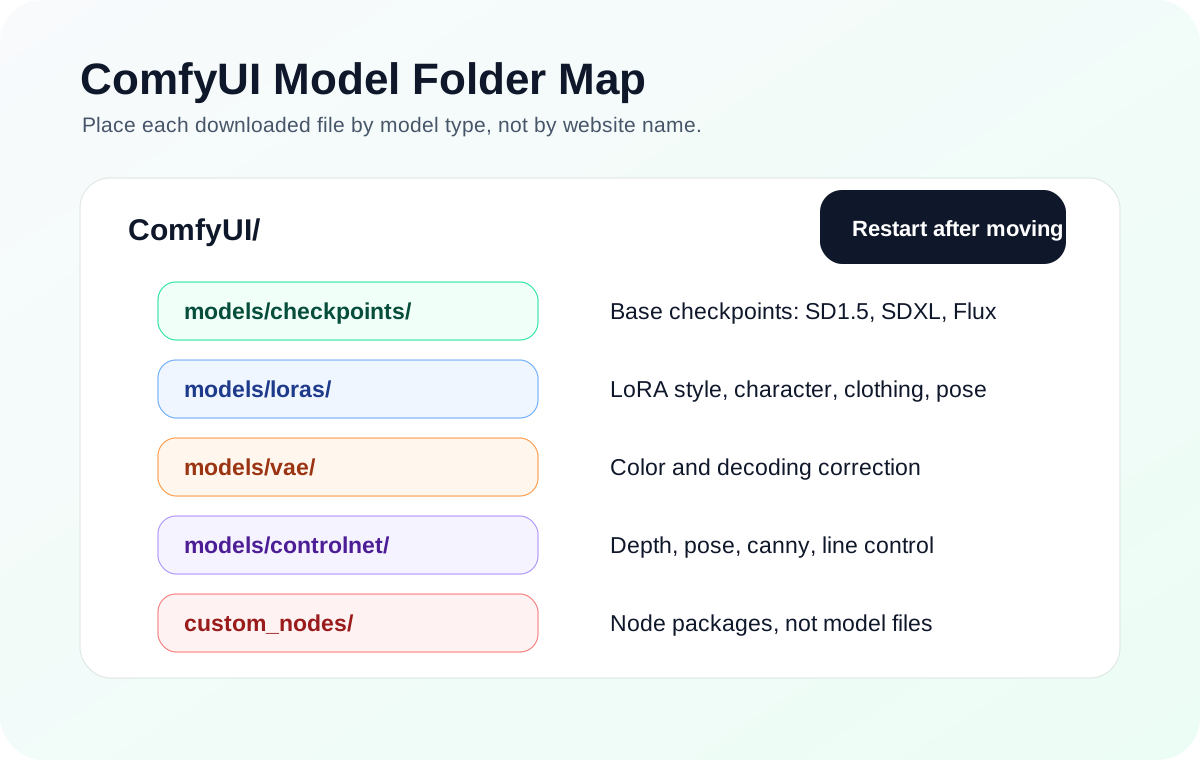
Quick answer
In ComfyUI, the checkpoint decides the model family and base image behavior. LoRA changes a compatible checkpoint. ControlNet adds structure. VAE sits near the end of the graph and decodes latent data into the visible image.
Recommended workflow
- 01
VAE is the final image decoder, not the main model: In ComfyUI, the checkpoint decides the model family and base image behavior. LoRA changes a compatible checkpoint. ControlNet adds structure. VAE sits near the end of the graph and decodes latent data into the visible image.
- 02
Use the built-in VAE until there is a reason to override it: Many checkpoints already include a suitable VAE. A beginner does not need to add a Load VAE node to every workflow. Add an external VAE only when the model author recommends it or when the image looks gray, washed out, muddy, or unusually flat.
- 03
Debug VAE issues after model placement is clean: Put VAE files in models/vae and select them through a VAE loader or the workflow field that expects a VAE. If the dropdown is empty, fix the folder path before changing prompts or sampler settings.
Full tutorial notes
VAE is the final image decoder, not the main model
In ComfyUI, the checkpoint decides the model family and base image behavior. LoRA changes a compatible checkpoint. ControlNet adds structure. VAE sits near the end of the graph and decodes latent data into the visible image.
That means VAE can affect color, contrast, saturation, dark areas, and fine detail, but it will not fix the wrong character, a bad pose, or a missing model family.
- Checkpoint: base model and family.
- LoRA: character or style adapter.
- VAE: latent-to-image decoder.
- ControlNet: structural condition branch.
Use the built-in VAE until there is a reason to override it
Many checkpoints already include a suitable VAE. A beginner does not need to add a Load VAE node to every workflow. Add an external VAE only when the model author recommends it or when the image looks gray, washed out, muddy, or unusually flat.
Compare with the same seed, prompt, resolution, and checkpoint. If the composition stays similar but color and contrast improve, the VAE change is doing its job.
Debug VAE issues after model placement is clean
Put VAE files in models/vae and select them through a VAE loader or the workflow field that expects a VAE. If the dropdown is empty, fix the folder path before changing prompts or sampler settings.
If the subject, pose, or style is wrong, inspect checkpoint, LoRA, prompt, or ControlNet first. If the subject is correct but the image is gray or color-shifted, then test VAE choices.
Check before you run
- Confirm the checkpoint can generate before changing VAE settings.
- Put external VAE files in models/vae and select them through the VAE loader.
- Compare built-in VAE and external VAE with the same seed, prompt, and size.
Common mistakes
- Expecting VAE to fix pose, identity, or prompt understanding.
- Placing VAE files in checkpoints or loras.
- Changing checkpoint, LoRA, sampler, and VAE at the same time.
Success standard
- The VAE dropdown shows the file when an external VAE is needed.
- Color or contrast changes while composition remains broadly comparable.
- The workflow still runs after returning to the checkpoint default VAE.
What to do next
- Keep the checkpoint default VAE unless a model page recommends otherwise.
- Use model file paths to verify the VAE location.
- If structure is wrong, check ControlNet instead of VAE.
Finished this guide? Return to the main path
If this guide solved a specific issue, return to the beginner setup, model path, CUDA VRAM, or workflow import route to keep going.
Need more context?
This English guide gives the direct working path first. The paired Chinese reference can provide extra screenshots, local download notes, and longer troubleshooting branches for the same topic.