How to Use ComfyUI Manager
Use ComfyUI Manager to search for plugins, install missing nodes, update packages safely, restart correctly, and avoid breaking a working setup.
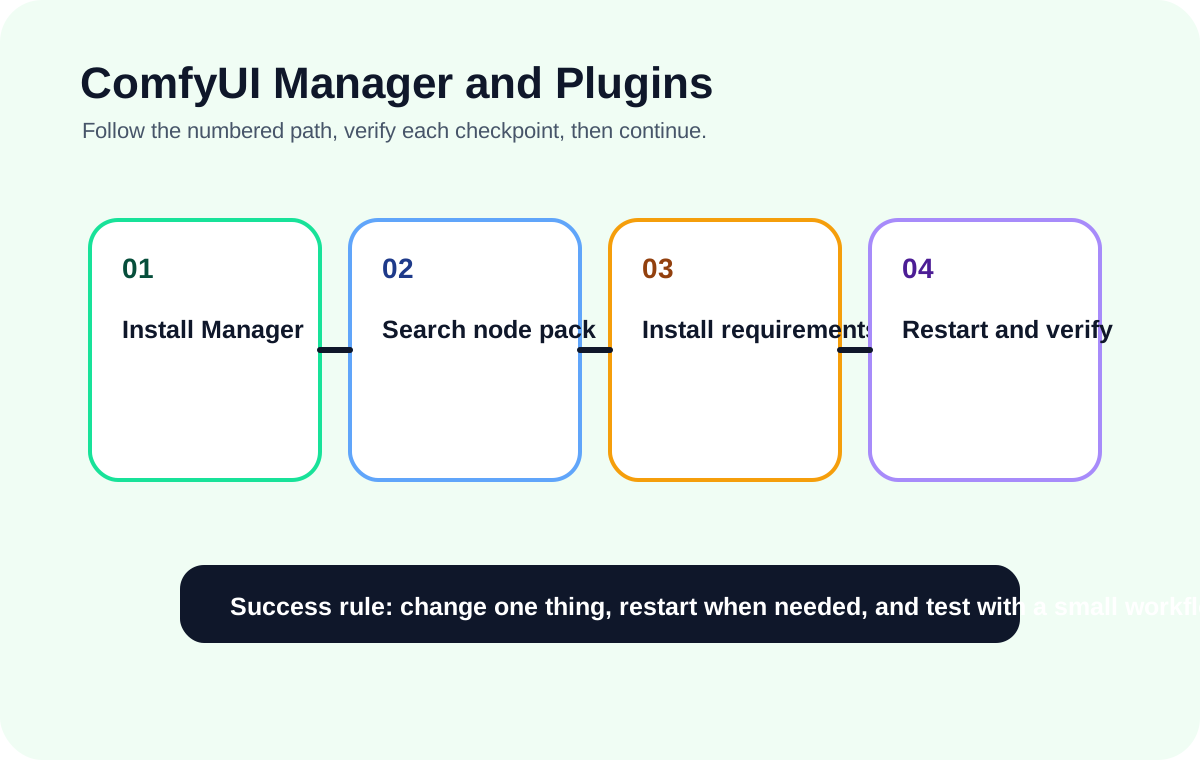
Quick answer
ComfyUI Manager is useful because it can search custom nodes, install missing packages, and help repair imported workflows. It can also break a stable setup if you update everything without a reason.
Recommended workflow
- 01
Use Manager as a controlled installer, not a bulk updater: ComfyUI Manager is useful because it can search custom nodes, install missing packages, and help repair imported workflows. It can also break a stable setup if you update everything without a reason.
- 02
Repair missing nodes from an imported workflow: After importing a workflow, Manager may detect missing custom nodes. Install the required node packs, restart ComfyUI, then reload the workflow and check whether red nodes are gone.
- 03
Update safely: Before updating ComfyUI or custom nodes, save the workflows you care about and note which node packs are currently working. Update one group at a time, then run a known-good workflow as a regression test.
Full tutorial notes
Use Manager as a controlled installer, not a bulk updater
ComfyUI Manager is useful because it can search custom nodes, install missing packages, and help repair imported workflows. It can also break a stable setup if you update everything without a reason.
Use it deliberately: install the node pack you need, restart, verify, then continue. Avoid mass updates right before important work.
- Search by node pack name when possible.
- Read install messages before restarting.
- Keep a working workflow for regression checks.
Repair missing nodes from an imported workflow
After importing a workflow, Manager may detect missing custom nodes. Install the required node packs, restart ComfyUI, then reload the workflow and check whether red nodes are gone.
If red nodes remain, the workflow may use a renamed node, a private node pack, or a dependency that failed during installation. In that case, use the terminal log instead of repeatedly clicking install.
Update safely
Before updating ComfyUI or custom nodes, save the workflows you care about and note which node packs are currently working. Update one group at a time, then run a known-good workflow as a regression test.
Check before you run
- Install one node pack first, then restart.
- Check whether the plugin has a requirements.txt dependency step.
- Open a small test workflow that actually uses the new node.
Common mistakes
- Updating every plugin while trying to fix one missing node.
- Installing into the wrong custom_nodes folder depth.
- Skipping the restart after Manager finishes.
Success standard
- ComfyUI restarts without a new terminal traceback.
- The workflow can be queued once without missing nodes or empty model dropdowns.
- The result can be reproduced after refreshing the browser page.
What to do next
- Increase image size only after the small test workflow is stable.
- Add one plugin or model family at a time.
- Return to the English guide library if the next error belongs to another category.
Finished this guide? Return to the main path
If this guide solved a specific issue, return to the beginner setup, model path, CUDA VRAM, or workflow import route to keep going.
Need more context?
This English guide gives the direct working path first. The paired Chinese reference can provide extra screenshots, local download notes, and longer troubleshooting branches for the same topic.