ComfyUI Model Not Showing in Dropdown
Fix ComfyUI model not showing in dropdown, checkpoint not showing, LoRA dropdown empty, VAE dropdown empty, refresh issues, and extra_model_paths confusion.
Quick answer
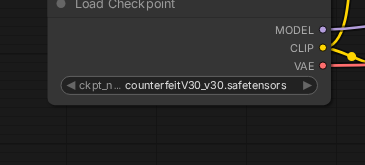
An empty dropdown is a discovery problem, not an image-quality problem. ComfyUI has not recognized a file that belongs to the node you are opening.
Recommended workflow
- 01
ComfyUI model not showing in dropdown: 30-second checklist: An empty dropdown is a discovery problem, not an image-quality problem. ComfyUI has not recognized a file that belongs to the node you are opening.
- 02
Match the search symptom to the real cause: If you searched for “ComfyUI model not showing in dropdown,” first decide which dropdown is empty. Checkpoint, LoRA, VAE, and ControlNet nodes read different folders, even when the files all end in .safetensors.
- 03
Separate wrong folder from wrong running copy: If the file is visible in your file manager but not in ComfyUI, confirm you placed it inside the ComfyUI install that is actually running. Many users keep a portable build, a source install, and an older test copy on the same machine.
- 04
Move to load-failure debugging only after the file appears: Once the dropdown can see the model, the problem changes. If Queue fails after selection, stop moving folders and read the terminal error. The model-load-failed guide handles invalid header, shape mismatch, CUDA out of memory, and other load-time failures.
Full tutorial notes
ComfyUI model not showing in dropdown: 30-second checklist
An empty dropdown is a discovery problem, not an image-quality problem. ComfyUI has not recognized a file that belongs to the node you are opening.
Check these in order before reinstalling: model type, target folder, file extension, backend refresh, running ComfyUI copy, and extra_model_paths.yaml if you use shared folders.
- Checkpoint Loader reads models/checkpoints.
- LoRA Loader reads models/loras.
- VAE loader reads models/vae.
- ControlNet loader reads models/controlnet.
- Browser refresh is not the same as restarting the ComfyUI backend.
Match the search symptom to the real cause
If you searched for “ComfyUI model not showing in dropdown,” first decide which dropdown is empty. Checkpoint, LoRA, VAE, and ControlNet nodes read different folders, even when the files all end in .safetensors.
If you searched for “ComfyUI checkpoint not showing,” confirm the file is actually a checkpoint and is not still in Downloads, inside a zip archive, or saved as a tiny HTML error page.
- checkpoint not showing -> inspect models/checkpoints.
- LoRA not showing -> inspect models/loras and the LoRA Loader.
- VAE dropdown empty -> inspect models/vae.
- refresh models not working -> restart the backend and confirm the active install path.
Separate wrong folder from wrong running copy
If the file is visible in your file manager but not in ComfyUI, confirm you placed it inside the ComfyUI install that is actually running. Many users keep a portable build, a source install, and an older test copy on the same machine.
For extra_model_paths.yaml, temporarily place one known-good checkpoint back in the default models/checkpoints folder. If that appears, the model file is fine and the shared-path configuration is the next thing to fix.
Move to load-failure debugging only after the file appears
Once the dropdown can see the model, the problem changes. If Queue fails after selection, stop moving folders and read the terminal error. The model-load-failed guide handles invalid header, shape mismatch, CUDA out of memory, and other load-time failures.
Check before you run
- Confirm the file is the model type expected by that node.
- Put the file in the matching models folder, then refresh or restart ComfyUI.
- Verify you are using the same ComfyUI install where you placed the file.
Common mistakes
- Looking for a LoRA, VAE, or ControlNet file in the Checkpoint Loader.
- Refreshing the browser while the backend model list is still stale.
- Placing files in one ComfyUI folder while running another copy.
Success standard
- The correct node dropdown shows the file name.
- A restart does not make the file disappear again.
- If Queue still fails, you know to move on to model-load-failed rather than keep moving folders.
What to do next
- Return to SD1.5 vs SDXL if the workflow family is unclear.
- Return to model file paths if the model type is unclear.
- Open model-load-failed after the dropdown can see the file.
Finished this guide? Return to the main path
If this guide solved a specific issue, return to the beginner setup, model path, CUDA VRAM, or workflow import route to keep going.
Need more context?
This English guide gives the direct working path first. The paired Chinese reference can provide extra screenshots, local download notes, and longer troubleshooting branches for the same topic.